Submit WordPress Sitemap to Google: Step-by-Step Guide

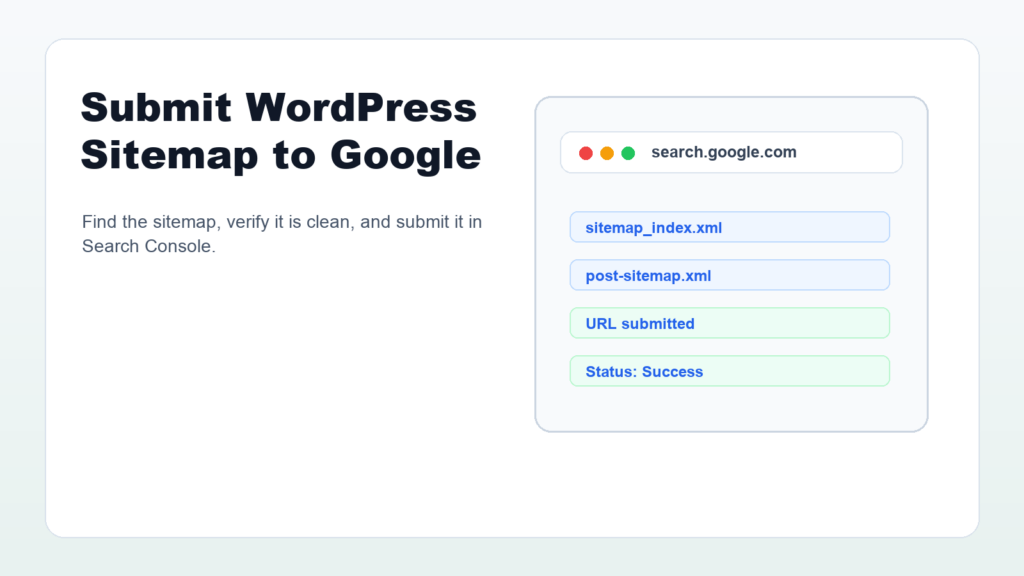
Submit WordPress sitemap to Google is one of the first technical SEO tasks to finish after publishing a new site or a new group of important pages. A sitemap helps Google discover the URLs you want crawled, especially when your site is new, large, or not deeply linked yet.
This guide shows how to find your WordPress sitemap, check that it is clean, submit it in Google Search Console, and avoid common sitemap mistakes that slow down indexing. It is written for WordPress users who want a practical workflow, not a theory-heavy explanation.
What a WordPress Sitemap Does
A sitemap is a file that lists important URLs on your site. Google’s sitemap documentation explains that sitemaps can include useful details such as when a page was last updated and relationships between files. The sitemap does not guarantee indexing, but it helps search engines crawl your site more efficiently.
For most WordPress sites, the sitemap is generated automatically by WordPress core or by an SEO plugin such as Rank Math. You usually do not need to create an XML sitemap by hand.
Find Your WordPress Sitemap URL
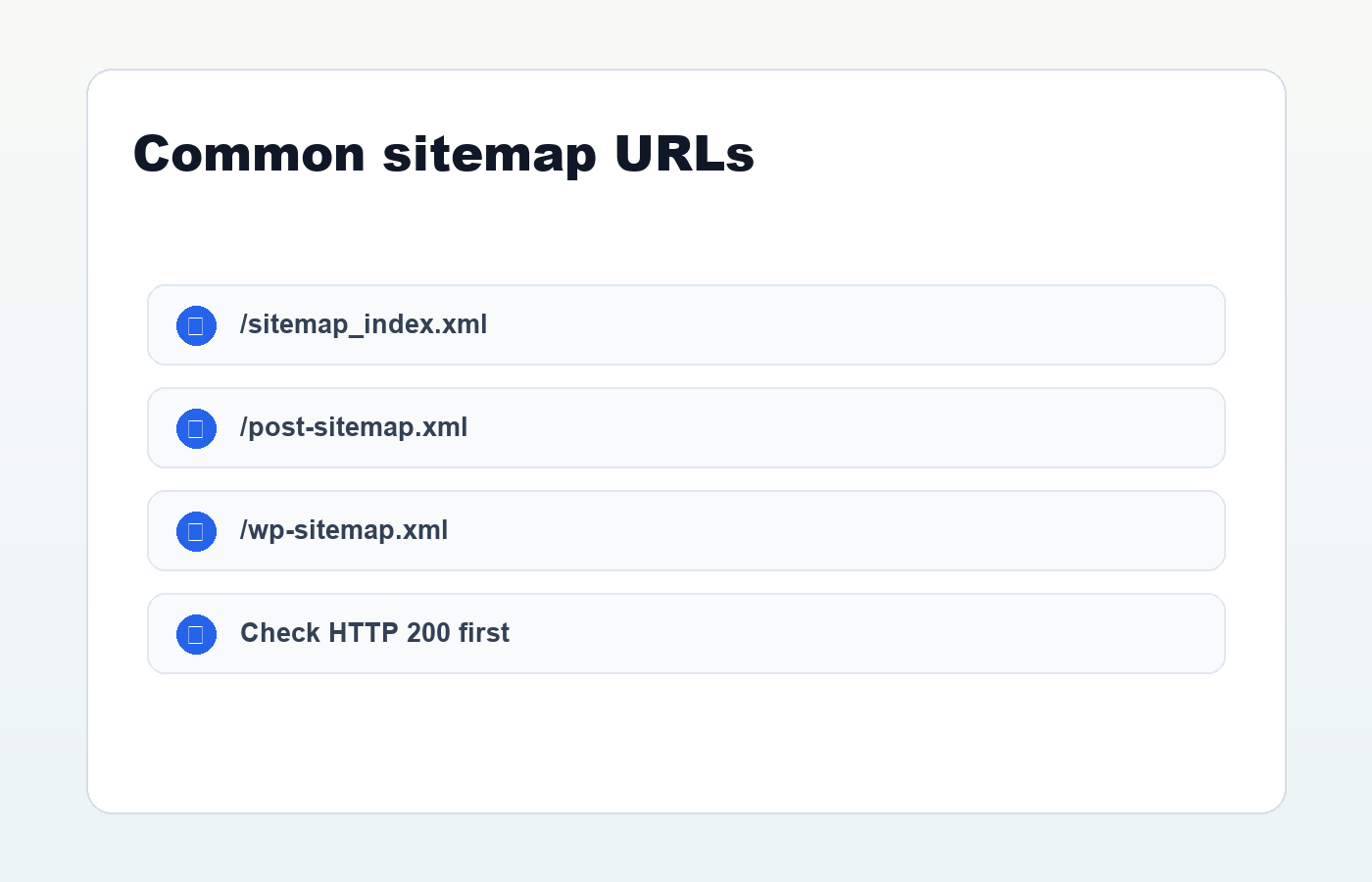
Before you submit WordPress sitemap to Google, open the sitemap in your browser and confirm that it loads. Common WordPress sitemap URLs include:
https://example.com/sitemap_index.xmlhttps://example.com/post-sitemap.xmlhttps://example.com/wp-sitemap.xml
If you use Rank Math, /sitemap_index.xml is often the main sitemap index. If you use the default WordPress sitemap, /wp-sitemap.xml is the common starting point.
Check the Sitemap Before Submitting
Do not submit a sitemap just because it exists. Open it first and check the basics. A sitemap should include public, indexable pages that you actually want Google to discover. It should not be filled with drafts, private pages, thin tag archives, test URLs, or blocked content.
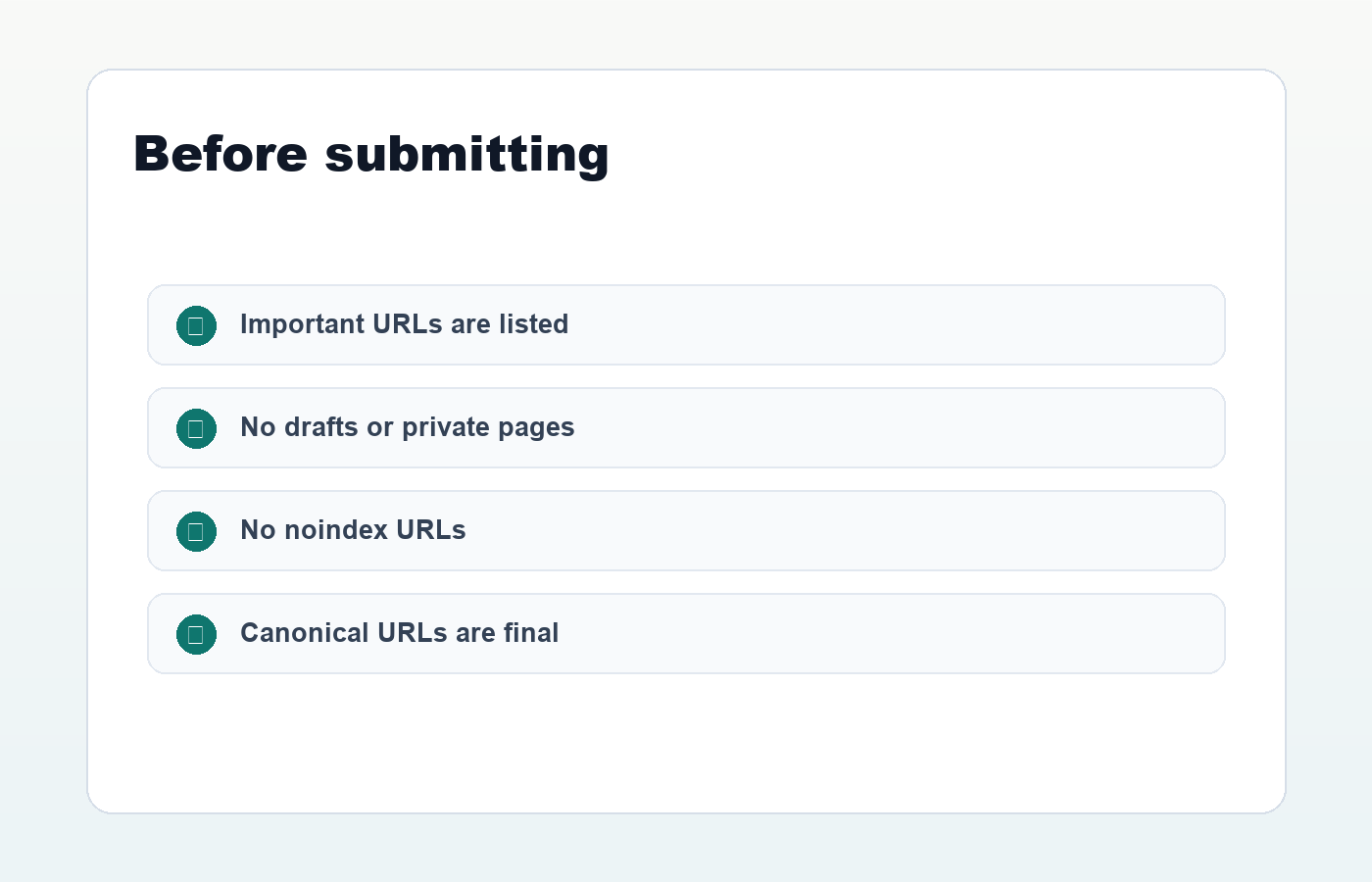
- The sitemap returns HTTP 200.
- Important posts and pages are listed.
- Drafts and private URLs are not listed.
- Noindex pages are not listed.
- The final canonical URLs are used.
- The sitemap is linked from your robots.txt file when possible.
Google’s sitemap documentation notes that submitting a sitemap is a hint, not a command. A clean sitemap gives Google better information, but Google still decides what to crawl and index.
Submit WordPress Sitemap to Google Search Console
To submit WordPress sitemap to Google, you need access to a verified Google Search Console property for your domain. Once the property is verified, use the Sitemaps report.
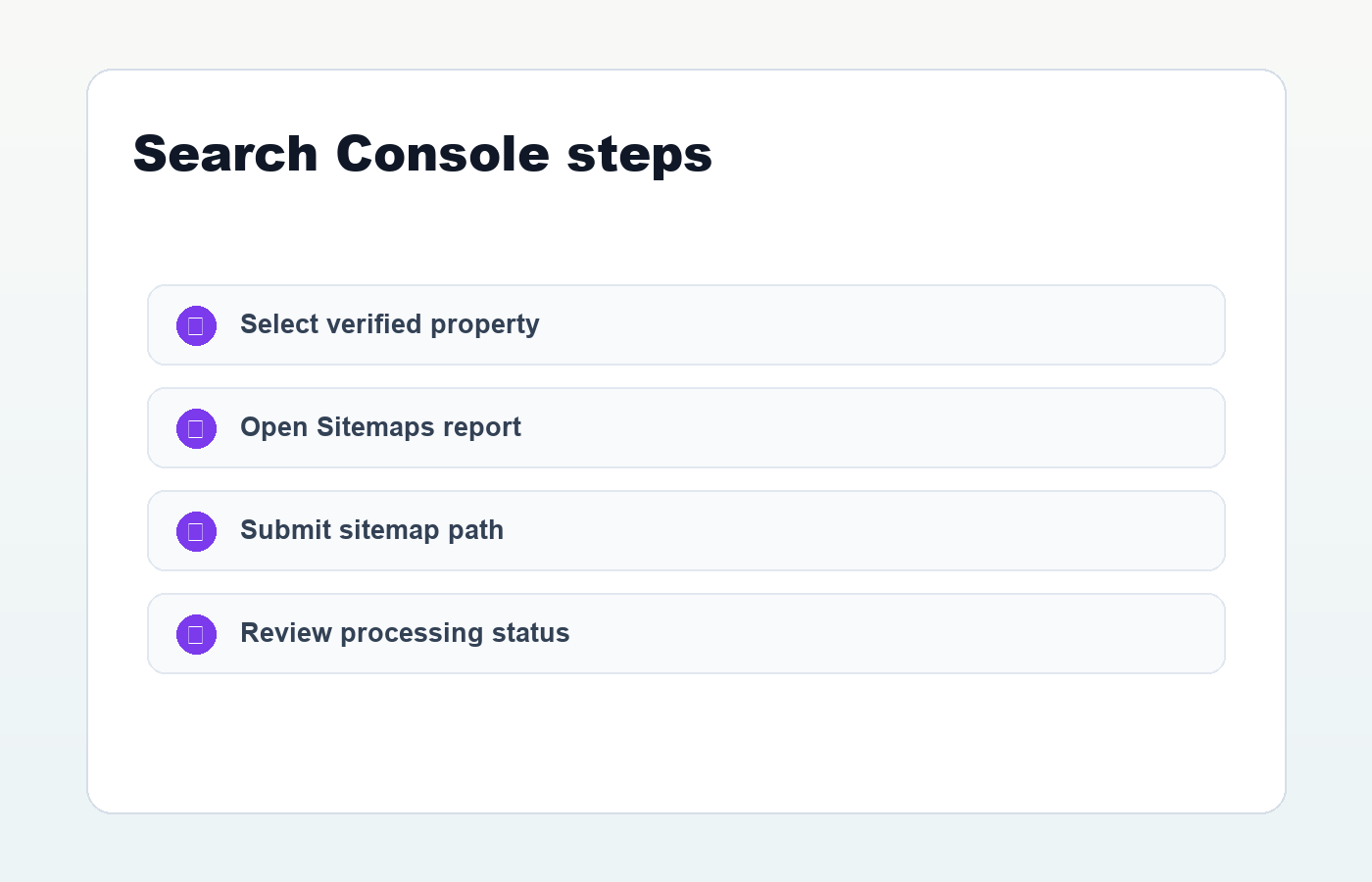
- Open Google Search Console.
- Select the correct website property.
- Go to Indexing or Sitemaps.
- Enter the sitemap path, such as
sitemap_index.xml. - Click submit.
- Check the status after Google processes it.
The Search Console Sitemaps report is useful because it shows submission history and sitemap processing errors. If Google cannot fetch or parse the sitemap, fix that problem before worrying about individual rankings.
Request Indexing for Important New URLs
Submitting a sitemap is the site-level step. For a very important new article, you can also use the URL Inspection tool in Search Console. Inspect the final URL, confirm that Google can access it, then request indexing if the page is ready.
Google’s recrawling guidance explains that you can request re-indexing after adding or changing a page, but indexing is not guaranteed. The page still needs to be useful, accessible, internally linked, and free from indexing blockers.
Common Sitemap Problems in WordPress
- The sitemap is cached and does not show new posts yet.
- An SEO plugin excludes a post type or taxonomy.
- The site is set to discourage search engines.
- Important pages have noindex enabled.
- Old URLs remain in the sitemap after a permalink change.
- The sitemap redirects too many times or returns a server error.
If a new post is live but missing from the sitemap, clear your SEO plugin cache and WordPress cache. If the URL still does not appear, check post status, publish date, post type settings, and Rank Math sitemap settings.
After You Submit the Sitemap
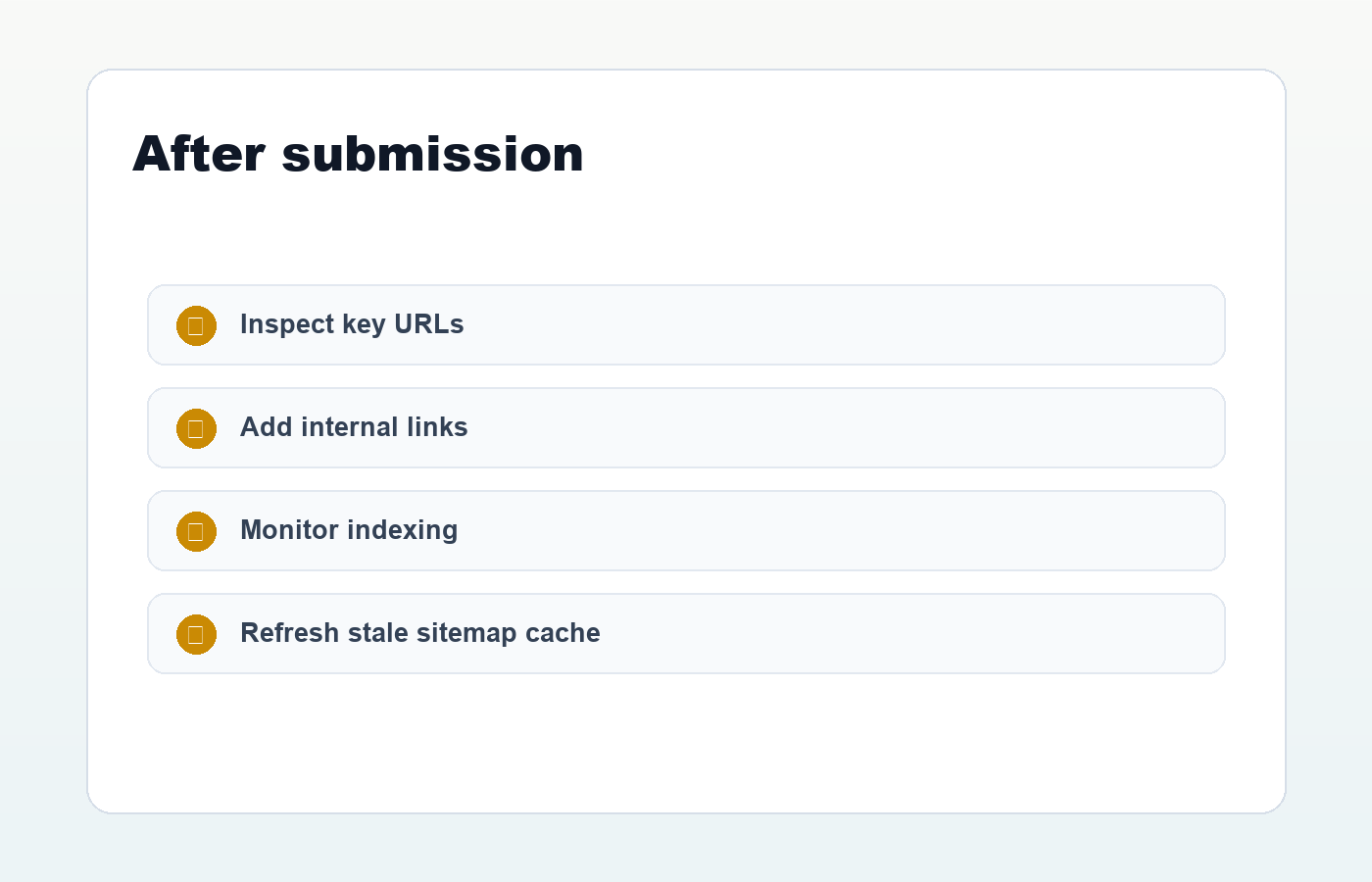
After submission, give Google time to process the sitemap. Then check Search Console for discovered URLs, indexing status, and errors. A submitted sitemap is not the end of SEO work. It is the beginning of a cleaner crawl path.
- Add internal links from relevant posts.
- Keep your sitemap free of low-value URLs.
- Update old posts when you publish related guides.
- Monitor Page indexing reports for blocked or duplicate URLs.
- Use a clear permalink structure for future content.
A good next step is to pair sitemap submission with a clean URL strategy. This guide on WordPress permalink structure explains how to keep URLs readable before they enter the sitemap.
When you submit WordPress sitemap to Google, keep the goal simple: make your important pages easier to discover. Clean metadata, strong internal links, helpful content, and a reliable sitemap work together better than any single SEO checkbox.
Discussion
Join the conversation