WordPress Not Showing on Google: 10 Checks to Fix Indexing

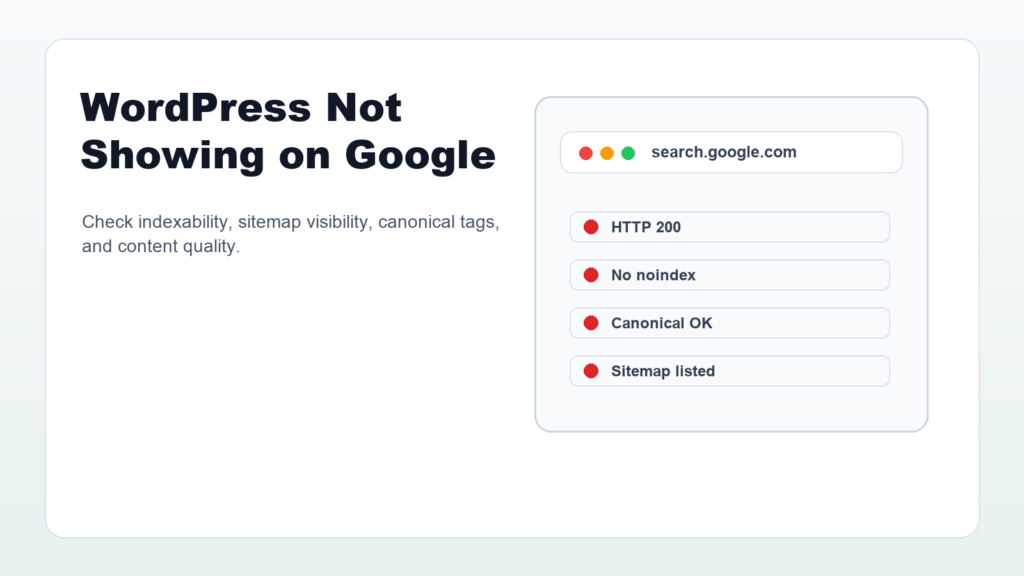
WordPress not showing on Google can feel alarming, especially after you publish a new site or spend time writing helpful posts. The good news is that the cause is usually practical: Google has not crawled the page yet, the site is accidentally noindexed, the sitemap is incomplete, or the page has quality and linking issues.
This troubleshooting guide walks through the checks that matter most. Start with indexability, then crawl access, sitemap visibility, canonical tags, internal links, and content quality. That order keeps you from changing random SEO settings and hoping something works.
WordPress Not Showing on Google: First Check Timing
If the page was published recently, it may simply not be indexed yet. Google needs to discover, crawl, render, evaluate, and index the URL. That can happen quickly for trusted sites, but it can take longer for new sites, small sites, or pages with few internal links.
Use Google Search Console’s URL Inspection tool to check the specific URL. Search Console can show whether Google knows about the page, whether it was crawled, and whether there are indexing issues.
Check the WordPress Search Engine Visibility Setting
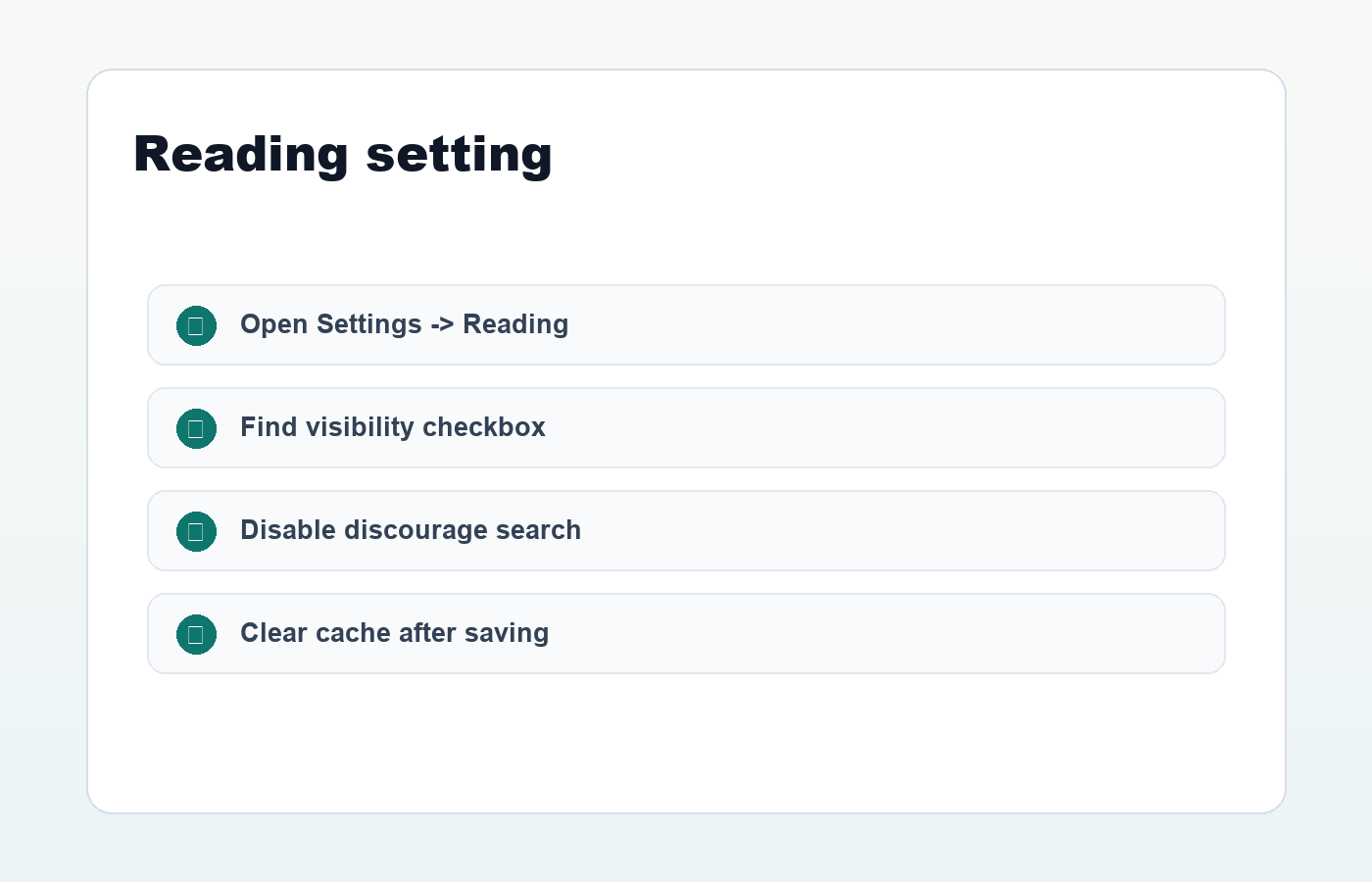
In WordPress, go to Settings -> Reading and look for the search engine visibility checkbox. If the site is set to discourage search engines, WordPress may send signals that tell search engines not to index the site.
This setting is useful while building a private staging site, but it should be off for a public website. After changing it, clear cache and recheck an important page in Search Console.
Look for Noindex Tags
A noindex directive tells search engines not to show a page in search results. Google’s noindex documentation explains two common ways to send noindex: a robots meta tag in the page HTML or an X-Robots-Tag HTTP header.
- Open the page source and search for
noindex. - Check SEO plugin settings for the post or page.
- Inspect HTTP headers if the page is a PDF or non-HTML file.
- Make sure templates, archives, or custom post types are not noindexed by default.
If you use Rank Math, open the page in WordPress and check the advanced robots settings. Important public posts should normally be indexable unless you have a specific reason to hide them.
Confirm Google Can Access the Page
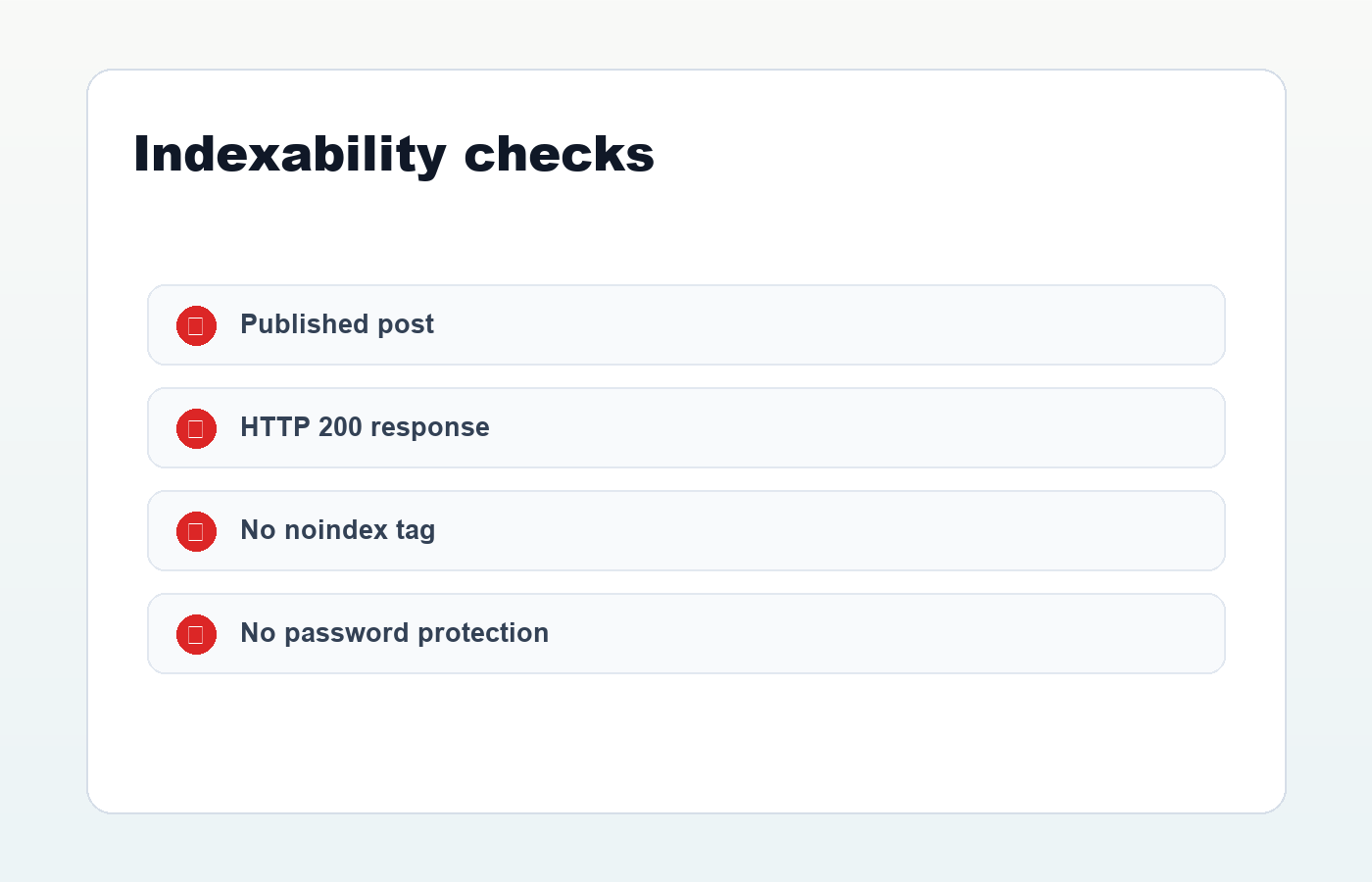
A page cannot rank if Google cannot access it. Check that the URL returns HTTP 200, loads without login, and is not blocked by a firewall, maintenance mode, password protection, or robots.txt rule that prevents crawling.
Robots.txt can block crawling, while noindex can block indexing. They are not the same tool. If you block crawling and also expect Google to see a noindex tag, Google may not be able to crawl the page to read that tag.
Submit and Check Your Sitemap
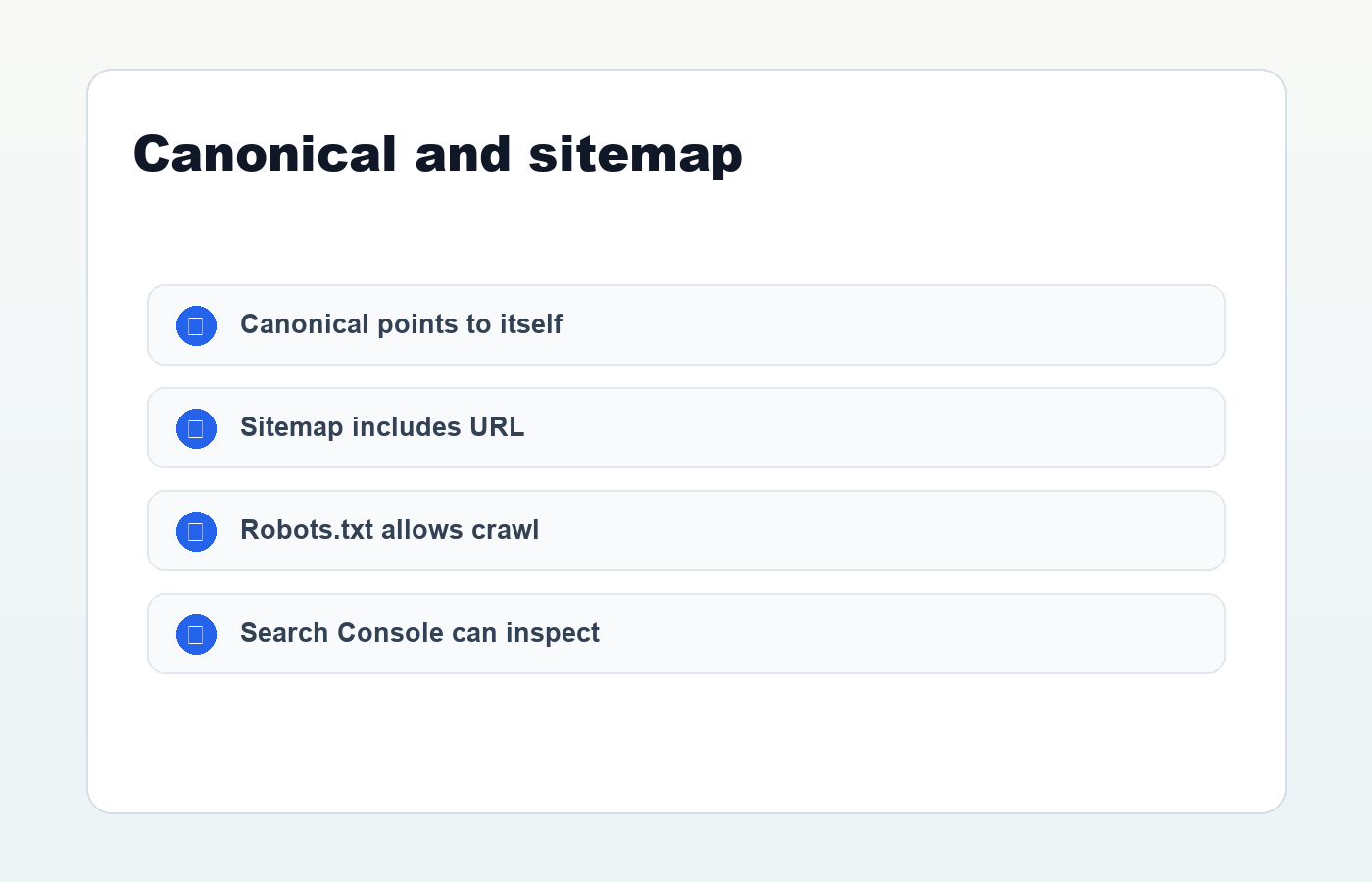
If WordPress is not showing on Google because Google has not discovered your URLs, a sitemap helps. Open your sitemap, confirm the page is listed, and submit the sitemap in Google Search Console.
- Try
/sitemap_index.xmlfor Rank Math. - Try
/wp-sitemap.xmlfor WordPress core. - Confirm the missing URL is present.
- Clear SEO plugin cache if new posts are missing.
- Check the Sitemaps report for fetch or parsing errors.
For a full walkthrough, use this guide to submit WordPress sitemap to Google.
Check Canonical URLs
The canonical tag tells search engines which URL is the preferred version of a page. If the canonical points to another URL, Google may choose that other URL instead of the page you are checking.
Canonical problems often happen after changing permalinks, duplicating pages, migrating a site, or using multiple SEO plugins at the same time. Check the page source and SEO plugin settings, then make sure internal links point to the final canonical URL.
Improve Internal Links
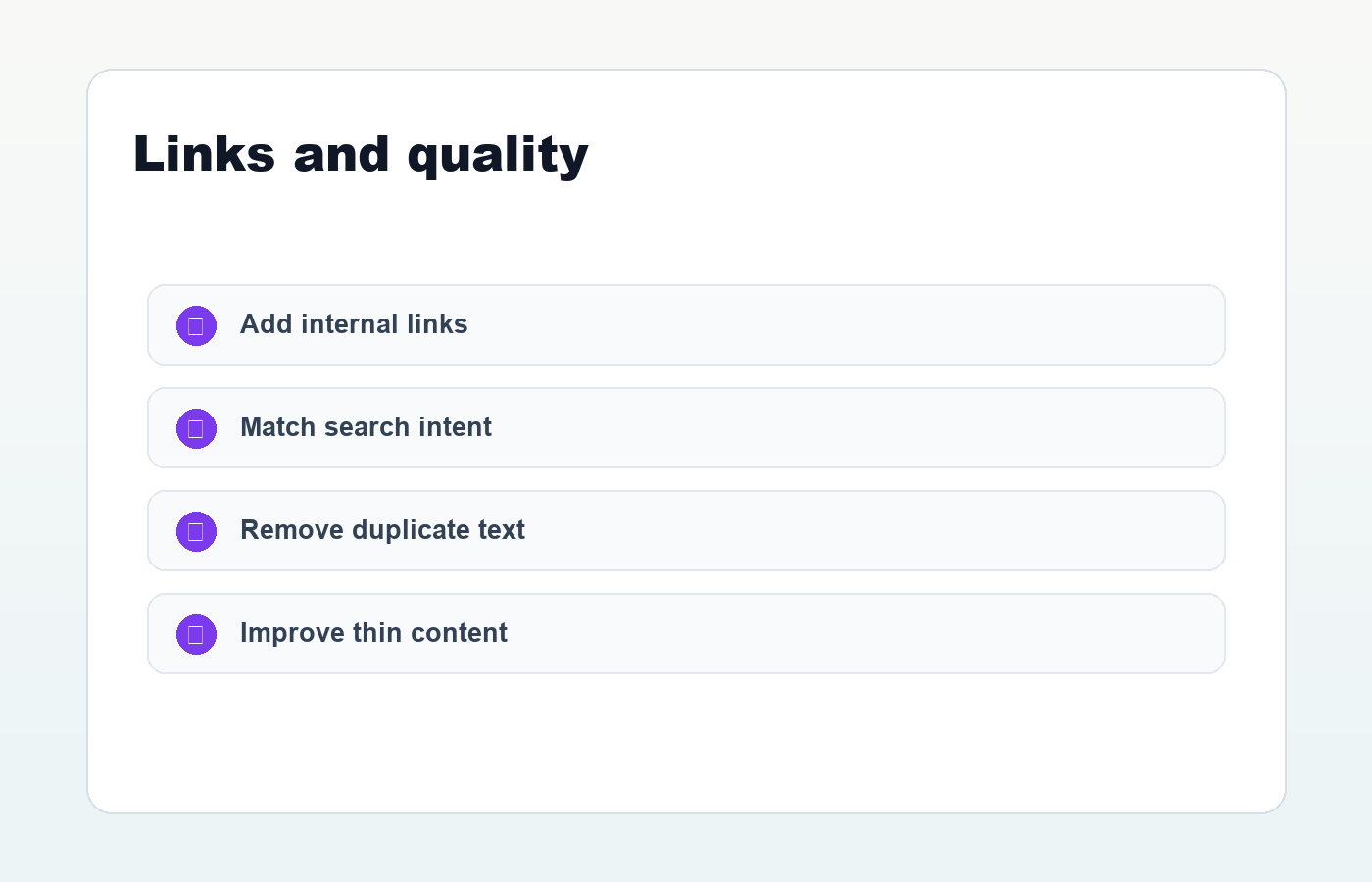
Google discovers pages through links. If a post is technically indexable but buried with no internal links, discovery and ranking can be slower. Link to important new pages from related posts, category pages, navigation, or a useful hub page.
Use descriptive anchor text. A link that says WordPress SEO checklist is more helpful than a vague link that says “read more.”
Review Content Quality and Search Intent
Indexing is not only a technical issue. Google may crawl a page and still decide not to index it if the content is thin, duplicated, unclear, or not useful enough compared with other pages. A page should answer a real search intent with original value.
- Make the title and opening paragraph specific.
- Answer the main question clearly.
- Add original examples, screenshots, workflows, or opinions.
- Remove placeholder text and duplicate blocks.
- Update outdated information.
- Link to reliable sources when facts matter.
Fix WordPress Indexing Step by Step
- Inspect the URL in Google Search Console.
- Confirm the page is published and returns HTTP 200.
- Turn off “discourage search engines” for a public site.
- Remove accidental noindex tags.
- Check robots.txt and firewall rules.
- Confirm the canonical URL is correct.
- Submit a clean sitemap.
- Add internal links from relevant pages.
- Improve the content if the page is thin.
- Request indexing for important URLs after fixes.
When WordPress not showing on Google is the problem, move calmly through the checklist. Most indexing issues come from a small number of causes. Find the blocker, fix it, give Google a clean path to the page, and then monitor Search Console instead of guessing.
Discussion
Join the conversation