How to Install PHP on macOS, Windows, and Linux

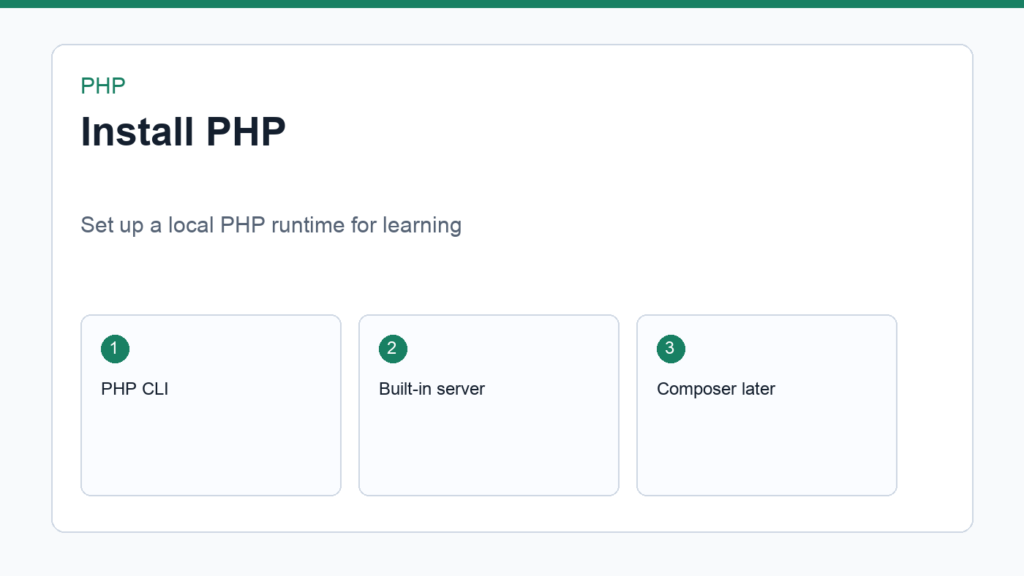
If you want to install PHP for local development, start with a simple setup that lets you run scripts from the terminal and test pages in your browser. You can add databases, frameworks, containers, and deployment tools later. The first goal is smaller: make sure your computer can execute PHP code reliably.
This guide covers macOS, Windows, and Linux at a beginner-friendly level. The official PHP downloads page is the canonical source for PHP releases, but package managers are usually easier for day-to-day development.
Install PHP: what you are setting up
When people say they need to install PHP, they may mean one of several things. PHP CLI lets you run commands such as php index.php. A web server setup lets your browser request PHP pages. Composer manages PHP packages. Extensions add features such as database drivers, image processing, internationalization, or XML parsing.
For beginners, the PHP CLI and built-in development server are enough to start. You can run php -S localhost:8000 inside a project folder and open the result in your browser. That is perfect for learning syntax, forms, and small examples before moving into a full stack.
How to install PHP on macOS
On macOS, the most common developer-friendly approach is Homebrew. If Homebrew is installed, open Terminal and run:
brew install phpAfter installation, check the version:
php -vIf the command prints a PHP version, your terminal can run PHP. If it says the command is not found, close and reopen Terminal, then check your shell path. Homebrew usually prints post-install notes when extra path changes are needed.
How to install PHP on Windows
On Windows, you have a few good options. Beginners can use a local development bundle such as XAMPP or Laragon if they want PHP, Apache, and MySQL together. Developers who prefer command-line package management can use a tool such as Scoop or Chocolatey. The best choice depends on whether you want a simple all-in-one stack or a lighter PHP-only setup.
If you use an all-in-one stack, make sure you know where the PHP executable lives and how to check the version. Open Command Prompt or PowerShell and run:
php -vIf Windows cannot find PHP, add the PHP folder to your system PATH. After editing PATH, open a new terminal window and test again.
How to install PHP on Linux
On Linux, use your distribution’s package manager. On Ubuntu or Debian-based systems, a basic install often looks like this:
sudo apt update
sudo apt install php php-cli
Then verify the installation:
php -vFor Fedora-based systems, use dnf. For Arch-based systems, use pacman. If you plan to work with MySQL, install the PDO MySQL extension as well. Package names differ between distributions, so check your distribution documentation when an extension is missing.
Create a test project
After you install PHP, create a folder named php-start. Inside it, create index.php:
<?php
$today = date('Y-m-d');

echo "PHP is working. Today is {$today}.";
Run it from the terminal:
php index.phpThen test it in the browser:
php -S localhost:8000Open http://localhost:8000. If you see your message, the local setup is ready for beginner PHP practice. Continue with How to Run Your First PHP Script Locally for a more detailed first-project walkthrough.
Should you install Composer now?
Composer is the standard dependency manager for PHP. You do not need it for your first echo statement, but you should install it soon. Composer becomes important when you use packages, autoload classes, or start a Laravel project. The official Composer introduction explains the tool and installation options.
Common setup problems
phpcommand not found: PHP is not installed or your terminal path does not include it.- Wrong PHP version: multiple PHP versions may be installed. Check your package manager and path order.
- Missing extension: install the extension package or enable it in
php.ini. - Browser shows source code: the file is not being served by PHP. Use a PHP server, not plain file opening.
Check your PHP configuration
After the basic command works, inspect the configuration PHP is using. Run:
php --iniThis command shows the loaded php.ini file and any additional configuration files. You do not need to edit them immediately, but knowing where they are helps later when a tutorial asks you to enable an extension or change a development setting.
Install PHP extensions only when needed
PHP extensions add capabilities to the runtime. Database work may need PDO drivers. Image handling may need GD or Imagick. XML processing may need XML-related extensions. Beginners often install too much at once and then forget which part matters. A cleaner habit is to start with PHP CLI, then add extensions when a real project requires them.
When an extension is missing, PHP usually prints an error from the package or framework you are using. Read the missing extension name, install the matching package for your operating system, restart the relevant server if needed, and run the script again.
Keep local development separate from production
The built-in PHP server is for local development, not public production traffic. It is perfect for learning, quick demos, and small experiments. Real production sites usually run behind a configured web server, use proper permissions, serve HTTPS, manage logs, and separate public files from private application code.
This difference is important because beginner tutorials often blur local testing and live hosting. Install PHP locally to learn and build. Use a production-ready hosting setup when real users, private data, payment flows, or business operations are involved.
Final checklist
php -vprints a version.php index.phpruns a file from the terminal.php -S localhost:8000starts a local server.- Your browser can open the local project.
- You know where to install extensions when needed.
Once you can install PHP and run a local script, you are ready to learn the language itself. Start with PHP Programming for Beginners, then move into variables, arrays, loops, functions, and forms.
Discussion
Join the conversation