Best WordPress Security Checklist for Beginners

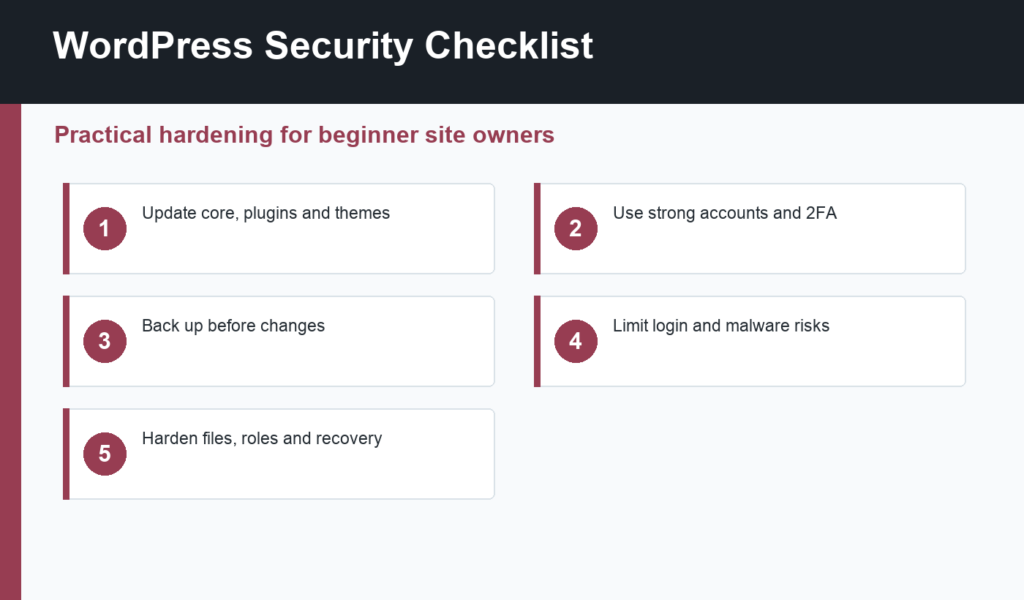
A WordPress security checklist gives beginners a repeatable way to reduce risk without turning site maintenance into panic work. WordPress security is not one plugin or one setting. It is a set of habits: updates, backups, strong logins, least-privilege user roles, safe plugins, malware monitoring, file protection, and recovery planning.
This checklist is designed for small business sites, blogs, portfolio sites, and early-stage WordPress projects. It keeps the steps practical, because security that is too complicated usually gets ignored.
WordPress security checklist: start here
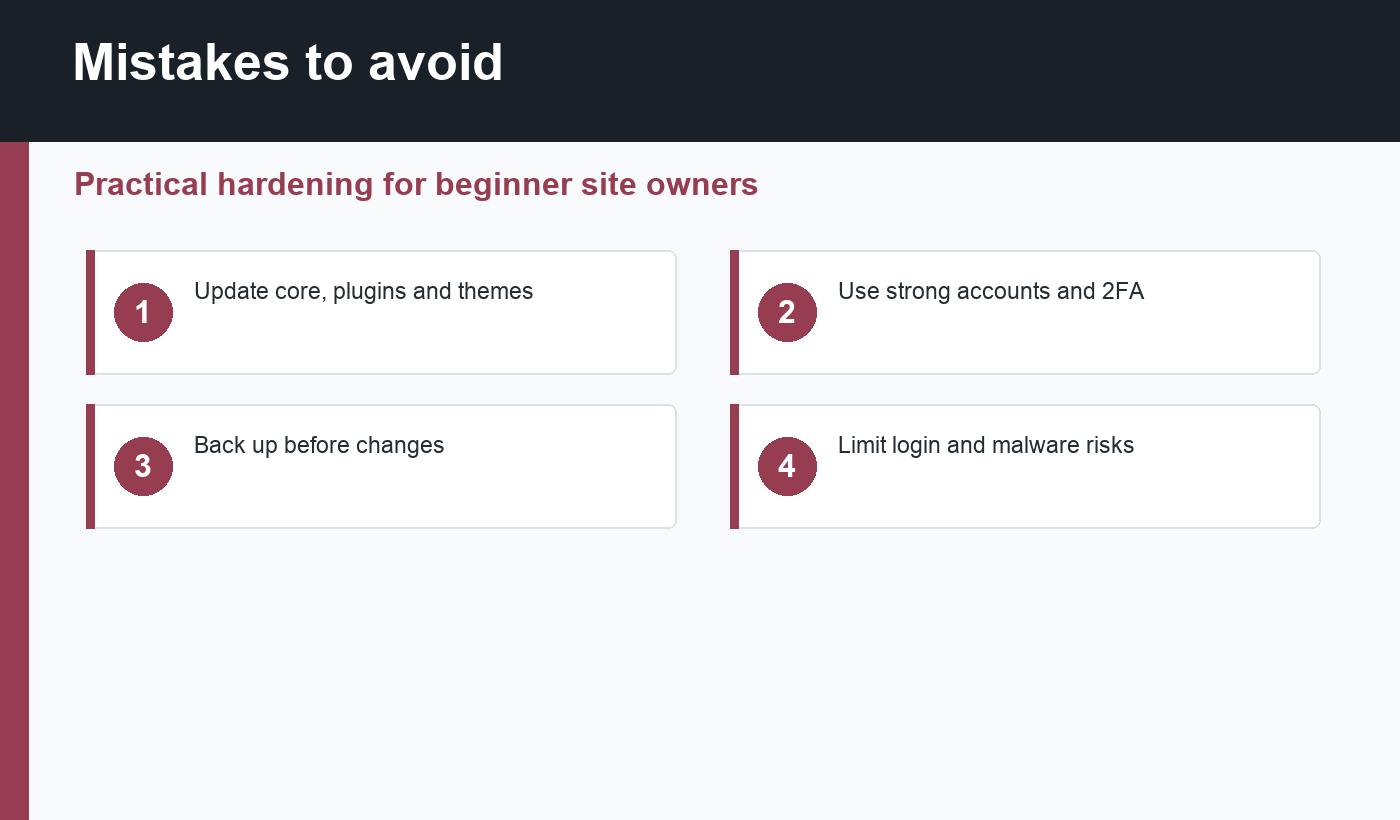
- Keep WordPress core, themes, and plugins updated.
- Delete plugins and themes you do not use.
- Use strong unique passwords and two-factor authentication.
- Give users only the access level they need.
- Schedule automatic offsite backups and test restores.
- Limit login abuse and monitor suspicious activity.
- Use HTTPS everywhere.
- Choose reputable plugins from maintained sources.
Update safely and consistently
Outdated plugins and themes are common WordPress security risks. Check updates regularly, especially for plugins that handle forms, ecommerce, membership, SEO, caching, redirects, and file uploads. Before major updates, take a backup. For important sites, test updates on staging before applying them live.
WordPress.org’s Hardening WordPress documentation is a useful baseline for understanding security fundamentals. The key idea is defense in depth: no single control is perfect, so you layer several sensible controls together.
Strengthen accounts and user roles
Use unique administrator accounts, strong passwords, and two-factor authentication. Avoid shared admin logins. If a writer only needs to create content, assign Author or Editor access instead of Administrator. Remove old accounts when contractors, employees, or collaborators no longer need access.
Login security plugins can help limit brute-force attempts, but account hygiene matters more. A weak reused password can undo many other protections. Use a password manager and review user access on a monthly schedule.
Back up before you need it
A backup is only useful if it can be restored. Store backups offsite, not only on the same hosting account. Keep multiple restore points. Test a restore periodically so you know the database, uploads, theme files, plugins, and configuration can actually be recovered.
Backups also make SEO work safer. Before changing permalink settings, SEO plugin settings, caching rules, or redirects, take a backup. If a change affects indexing, use the steps in WordPress not showing on Google to diagnose the issue, but make sure you can roll back first.
Choose plugins carefully
Every plugin adds code that must be maintained. Install plugins from reputable sources, check recent updates, read support history, and avoid abandoned tools. Delete inactive plugins instead of leaving them installed. If two plugins do the same job, keep the one you actually use and remove the other.
This matters for performance as well as security. A lean plugin stack is easier to update, debug, cache, and protect. If your site is already slow, review the guide to speed up WordPress website performance after cleaning unused plugins.
Protect files, forms, and admin areas
Use HTTPS, secure file permissions, and hosting-level protections where available. Disable file editing in the WordPress dashboard if you do not need it. Protect forms with spam controls. Monitor file changes and malware alerts. Keep upload features limited to trusted users and validated file types.
Security plugins can help with firewall rules, malware scanning, login limits, and hardening checks. They are useful, but they should support a clean maintenance process rather than replace it. Read the plugin’s documentation and avoid enabling aggressive settings without testing.
Recovery plan
Write down what to do if the site is hacked or broken: who can access hosting, where backups live, how to restore, how to rotate passwords, and how to contact the host. Keep DNS, hosting, domain, CDN, and WordPress admin access documented securely.
After recovery, check SEO signals. Important pages should still return 200, stay indexable, keep canonical URLs, and appear in the sitemap. Security incidents can create spam pages, redirects, or noindex settings that need cleanup.
Monthly maintenance habit
Set a monthly reminder to review updates, backups, user accounts, form spam, security logs, and plugin quality. This does not need to take long. A focused thirty-minute review can catch abandoned plugins, old administrator accounts, failed backups, expired licenses, and suspicious login patterns before they become bigger problems.
Also review recently published pages after major security or firewall changes. Some security rules can accidentally block REST API requests, media files, sitemap URLs, or crawlers. A secure site still needs to be usable, crawlable, and maintainable.
Final recommendation
The best WordPress security checklist is the one you actually follow. Update consistently, use strong accounts, back up offsite, keep plugins lean, monitor suspicious activity, and know how to recover. That basic discipline protects most beginner sites better than a complicated setup nobody maintains.
Discussion
Join the conversation