Speed Up WordPress Website: How to Make It Faster Without Breaking It

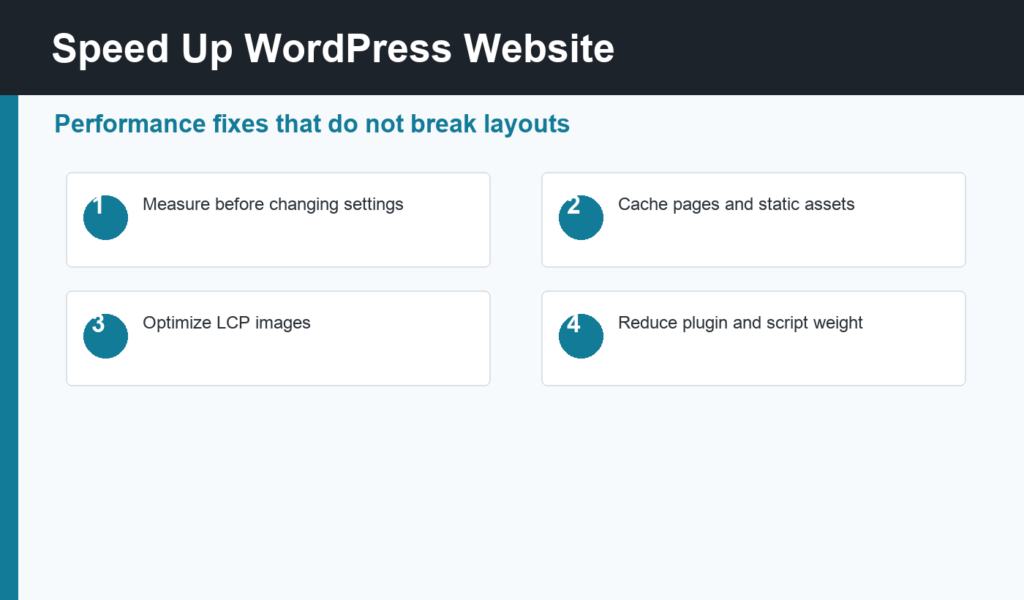
If you want to speed up WordPress website performance without breaking the design, start with measurement before changing plugins or flipping every cache setting at once. WordPress can be fast, but it becomes slow when oversized images, heavy themes, unnecessary plugins, render-blocking scripts, weak hosting, and poor caching all stack together.
This guide gives you a practical, low-risk process for improving WordPress speed. The goal is not to chase a perfect lab score. The goal is to make real pages load faster for real visitors while keeping forms, layouts, tracking, search, checkout, and admin workflows working correctly.
Why speed up WordPress website work matters
Speed affects how users experience your site. Slow pages create friction before a visitor reads your headline, sees your offer, or clicks a call to action. Search engines also use page experience signals, including Core Web Vitals, as part of a broader ranking system. Speed alone will not outrank better content, but poor performance can hold back otherwise useful pages.
For SEO, performance works best together with clean crawling, helpful content, clear titles, indexable pages, and strong internal links. If you are still building those foundations, pair this performance guide with the WordPress SEO checklist so your site improves on both speed and search basics.
Step 1: measure before you optimize
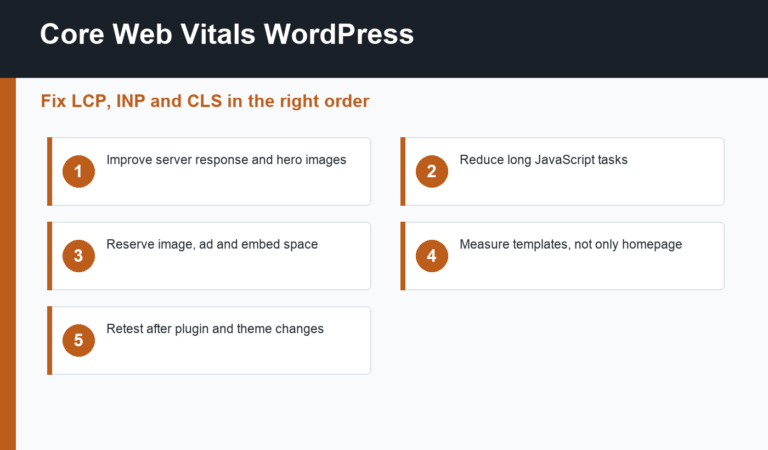
Before installing another performance plugin, test a few important page types: homepage, blog post, category page, service page, product page, and checkout or lead form if applicable. Use tools such as PageSpeed Insights, Chrome DevTools, WebPageTest, and your hosting metrics. Google’s Core Web Vitals guidance is a useful reference for understanding LCP, INP, and CLS. Look at both lab data and field data when available.
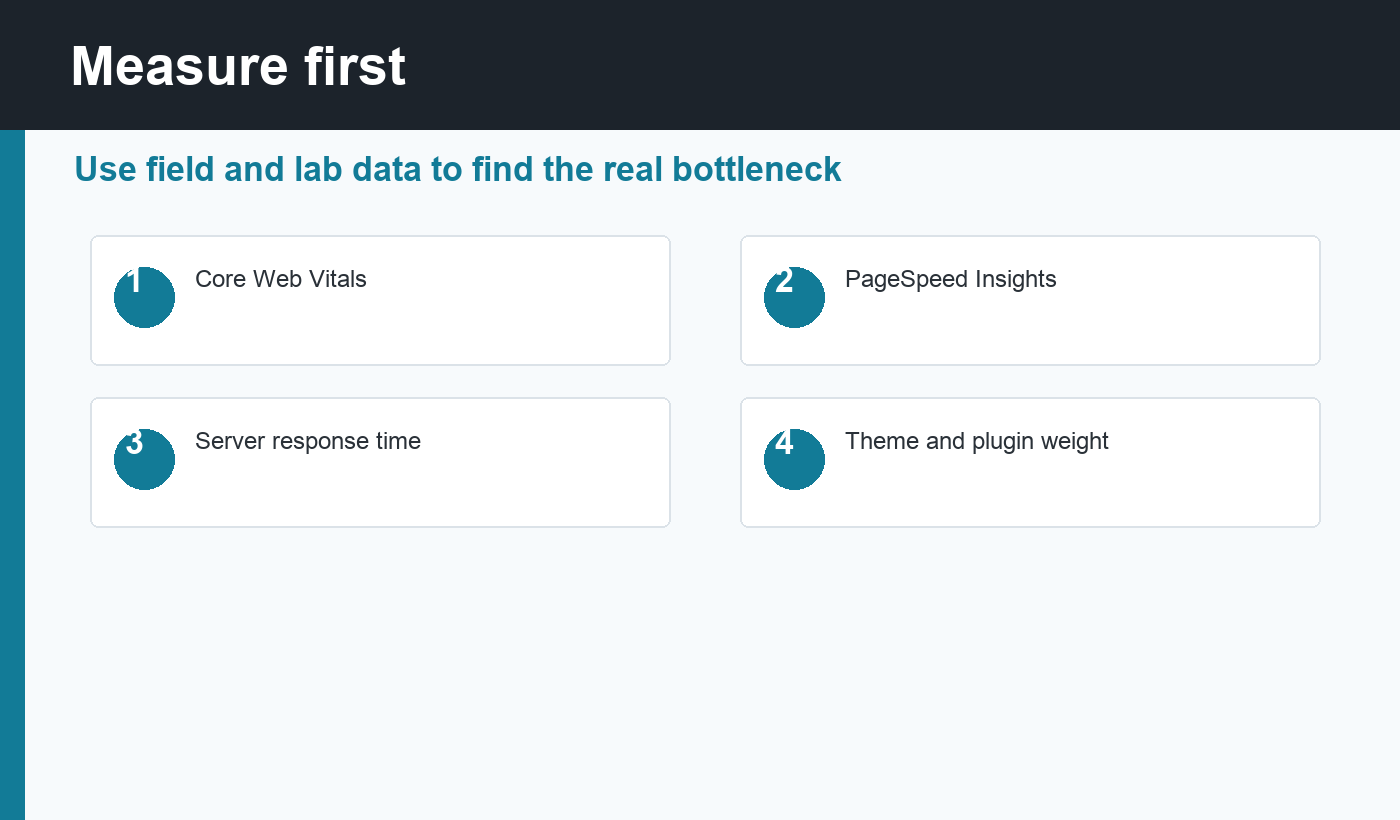
Focus on the main bottleneck. If the largest visible element loads late, work on LCP images and server response. If the page jumps while loading, fix image dimensions, font loading, ads, embeds, and dynamic banners. If clicks feel delayed, reduce heavy JavaScript and third-party scripts. This keeps your work targeted instead of random.
Step 2: improve hosting and server response
Hosting is the floor under every WordPress performance decision. If the server is overloaded or far from most visitors, plugin tweaks can only do so much. Check time to first byte, PHP version, database load, object cache support, and whether your host provides server-level page caching.
For small sites, a quality managed WordPress host can be enough. For larger sites, consider persistent object caching, a CDN, database cleanup, and server resources sized for traffic spikes. Avoid bargain hosting if the site earns leads or revenue; the hidden cost often appears as slow pages and lower conversion rates.
Step 3: set up caching safely
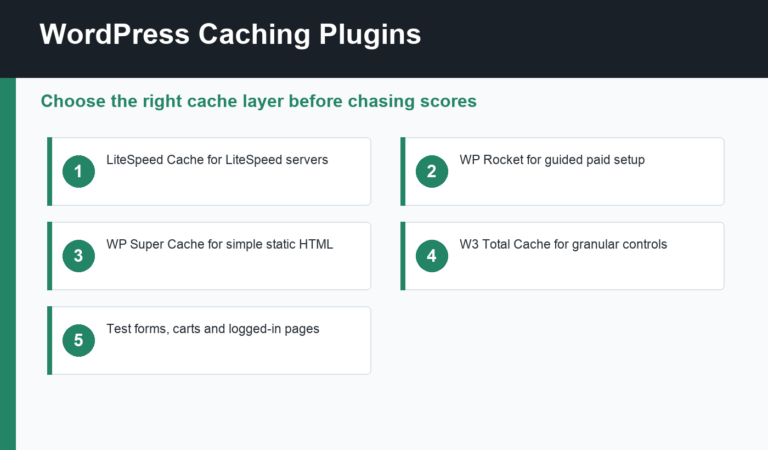
Caching makes WordPress faster by reducing repeated work. Page caching stores generated HTML so the server does not rebuild every page for every visitor. Browser caching keeps static files such as CSS, JavaScript, fonts, and images on the visitor’s device. Object caching stores database query results. A CDN caches assets near users around the world.
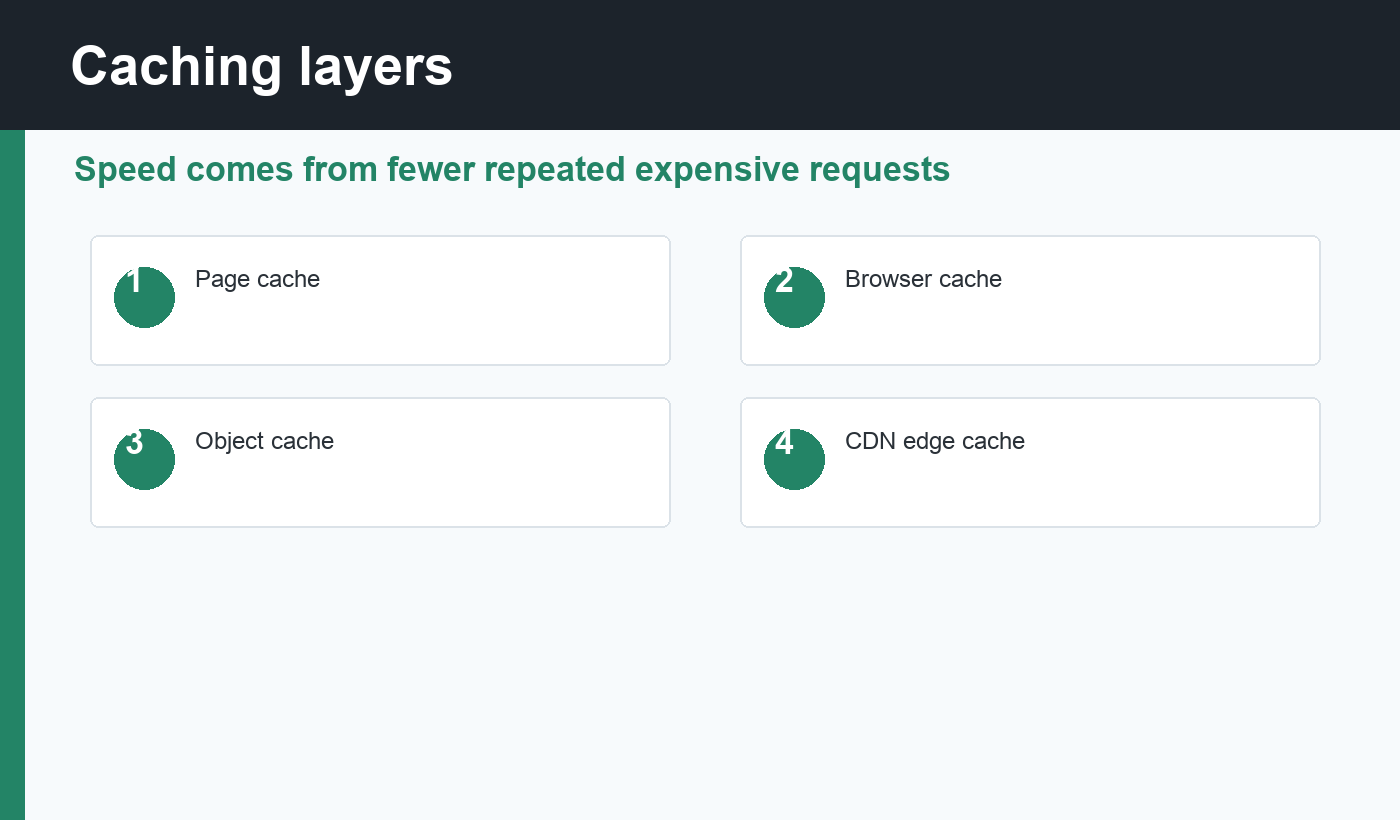
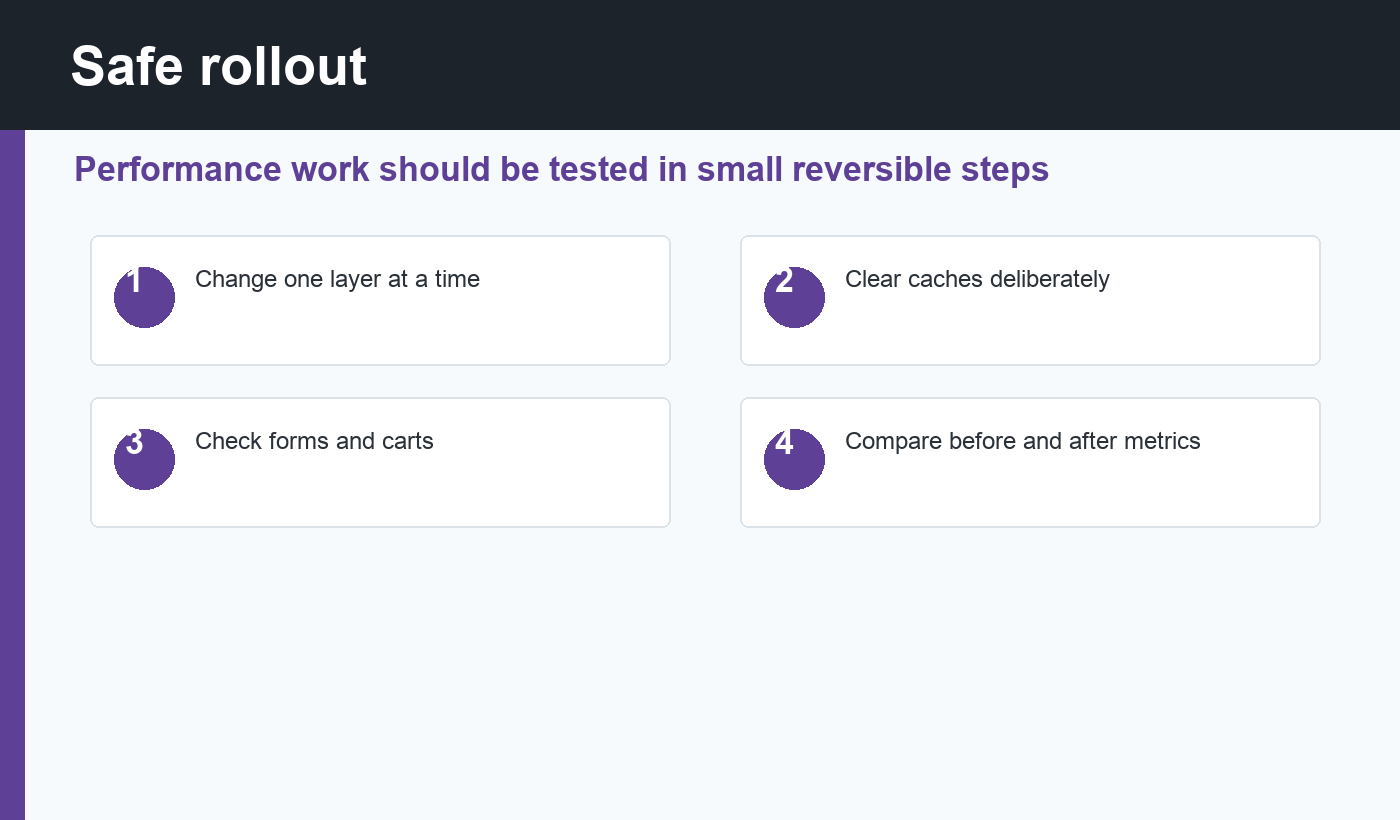
Use one primary caching layer for each job. Do not stack multiple page cache plugins unless you understand how they interact. After enabling cache settings, test logged-out pages, logged-in admin screens, forms, search results, carts, checkout, comments, and any personalized content. Clear caches deliberately after changing themes, plugins, menus, or CSS.
Step 4: optimize images for faster WordPress pages
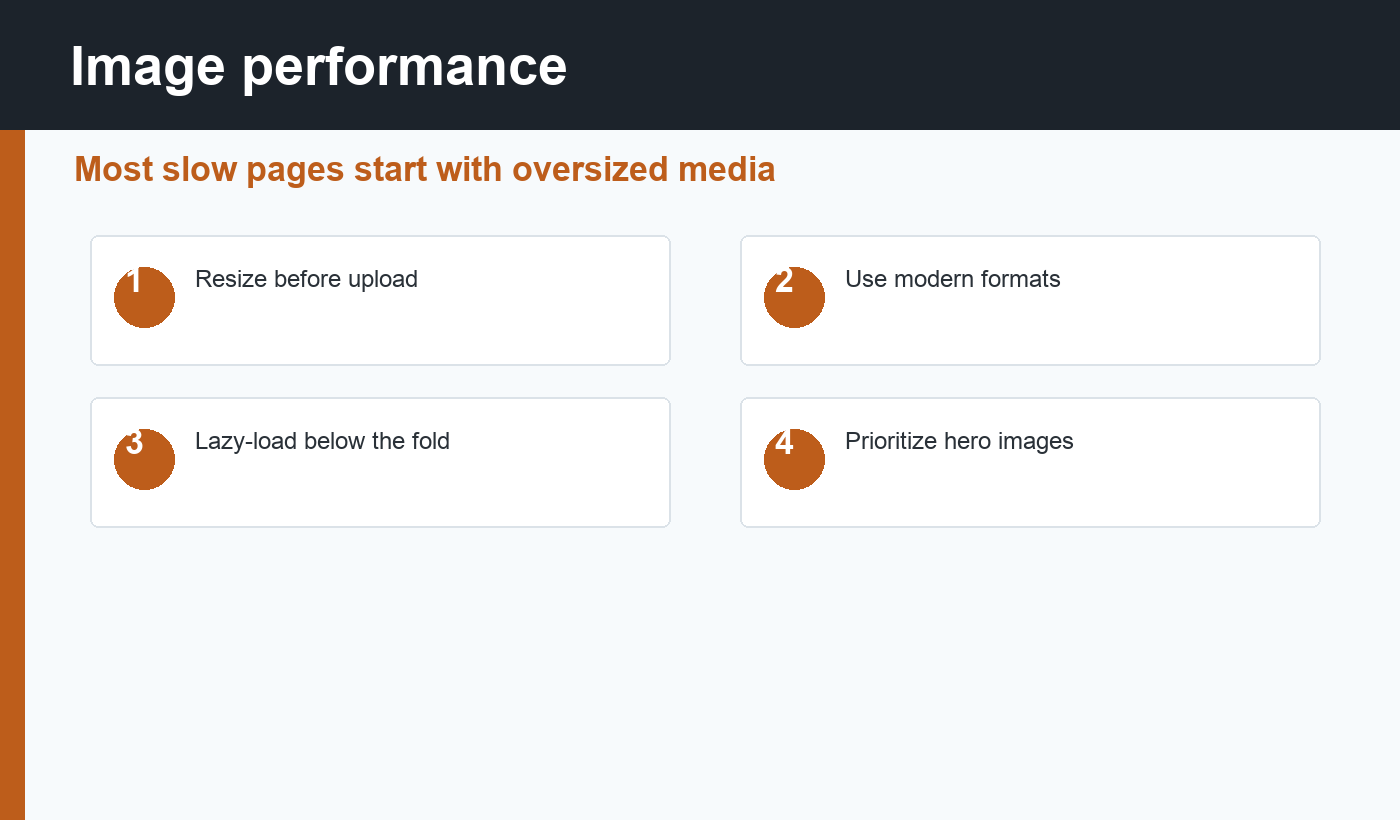
Images are one of the most common reasons WordPress pages feel slow. Uploading a huge photo and relying on the browser to shrink it wastes bandwidth. Resize images to the largest display size you actually need, compress them, and use modern formats such as WebP or AVIF when your workflow supports them.
For above-the-fold images, especially the hero image, prioritize loading instead of lazy-loading too aggressively. For images below the fold, lazy loading usually helps. Add width and height attributes so the browser can reserve space and avoid layout shifts. Also write descriptive image alt text; image optimization should improve both performance and accessibility.
Step 5: reduce plugin and theme weight
Every plugin has a cost: PHP execution, database queries, admin code, frontend scripts, CSS, cron tasks, or extra tables. Some plugins are worth that cost. Others duplicate features you already have. Review your plugin list and ask a simple question for each one: does this plugin still support an important user or business workflow?
Be especially careful with page builders, sliders, popup tools, analytics scripts, chat widgets, social embeds, and all-in-one suites. Disable features you do not use. Replace heavy design effects with simpler blocks when possible. A clean theme with focused plugins usually beats a complex theme that needs optimization workarounds on every template.
Step 6: handle CSS and JavaScript carefully
Minifying CSS and JavaScript can help, but aggressive optimization can break layouts, menus, sliders, forms, analytics, ads, and checkout scripts. Start with safer settings: remove unused assets where possible, defer non-critical JavaScript, delay third-party scripts that are not needed immediately, and inline or preload only truly critical resources.
After each change, test the site like a visitor. Open the homepage, read a post, submit a form, search the site, use mobile navigation, and complete any ecommerce flow. If something breaks, roll back the last setting instead of changing five more settings to compensate.
Step 7: protect SEO signals while speeding up the site
Performance work should not damage crawlability or indexing. After major speed changes, check that important pages still return HTTP 200, have self-referencing canonical URLs, are not accidentally marked noindex, and still appear in the sitemap. If your SEO plugin controls metadata and sitemaps, confirm those outputs still look correct.
This is especially important after changing caching, CDN, security, or optimization settings. A fast page that blocks search engines is not an SEO win. If you discover visibility problems, use the steps in WordPress not showing on Google to separate performance issues from indexing issues.
A safe WordPress speed checklist
- Benchmark important page templates before changing settings.
- Update PHP, WordPress core, theme, and plugins after backing up.
- Use quality hosting and enable server-level caching when available.
- Turn on page cache, browser cache, and CDN caching in a controlled way.
- Compress and resize images before upload, then use WebP or AVIF where supported.
- Remove unused plugins, widgets, embeds, and tracking scripts.
- Defer or delay non-critical JavaScript after testing key interactions.
- Keep fonts simple and avoid loading unnecessary font weights.
- Check mobile menus, forms, comments, search, and checkout after each optimization pass.
- Recheck canonical tags, robots meta, and sitemap URLs after CDN or cache changes.
Common mistakes to avoid
The biggest mistake is installing multiple optimization plugins and enabling every feature at once. That makes it hard to know what improved the site and what broke it. Another mistake is optimizing only the homepage. Search visitors often land on blog posts, category archives, product pages, or service pages, so test the pages that actually receive traffic.
Do not chase a score at the expense of usability. A page can score well in a lab test while important scripts fail for real users. Performance work should make the site faster, clearer, and easier to use. If a setting hides content, delays essential interactions, or breaks tracking you rely on, it needs a more careful setup.
Final recommendation
The safest way to speed up WordPress website performance is to work in small steps: measure, fix the largest bottleneck, test important workflows, then repeat. Start with hosting, caching, images, plugin weight, and careful script loading. Keep SEO signals intact while you optimize. That balanced process gives you a faster site without turning performance work into a guessing game.
Discussion
Join the conversation